Installing the OJS3 Copilot API plugin
The OJS Copilot app requires a free plugin on your journal's OJS site. This guide uses Indonesian OJS 3.3 screenshots; the interface in OJS 3.4 and 3.5 is similar.
Before you begin
- The OJS Copilot app requires the free OJS3 Copilot API plugin on your journal's OJS site (OJS 3.3, 3.4, or 3.5).
- The plugin only needs to be installed once per site and applies to all journals on that site.
- Installing plugins requires a Site Admin account. Not an admin? Send this page link to your journal manager.
-
Download plugin
Download the copilotApi-1.11.4.0.tar.gz file from the download page. Do not extract — OJS accepts .tar.gz files as is.
Plugin download page -
Open the Plugins menu
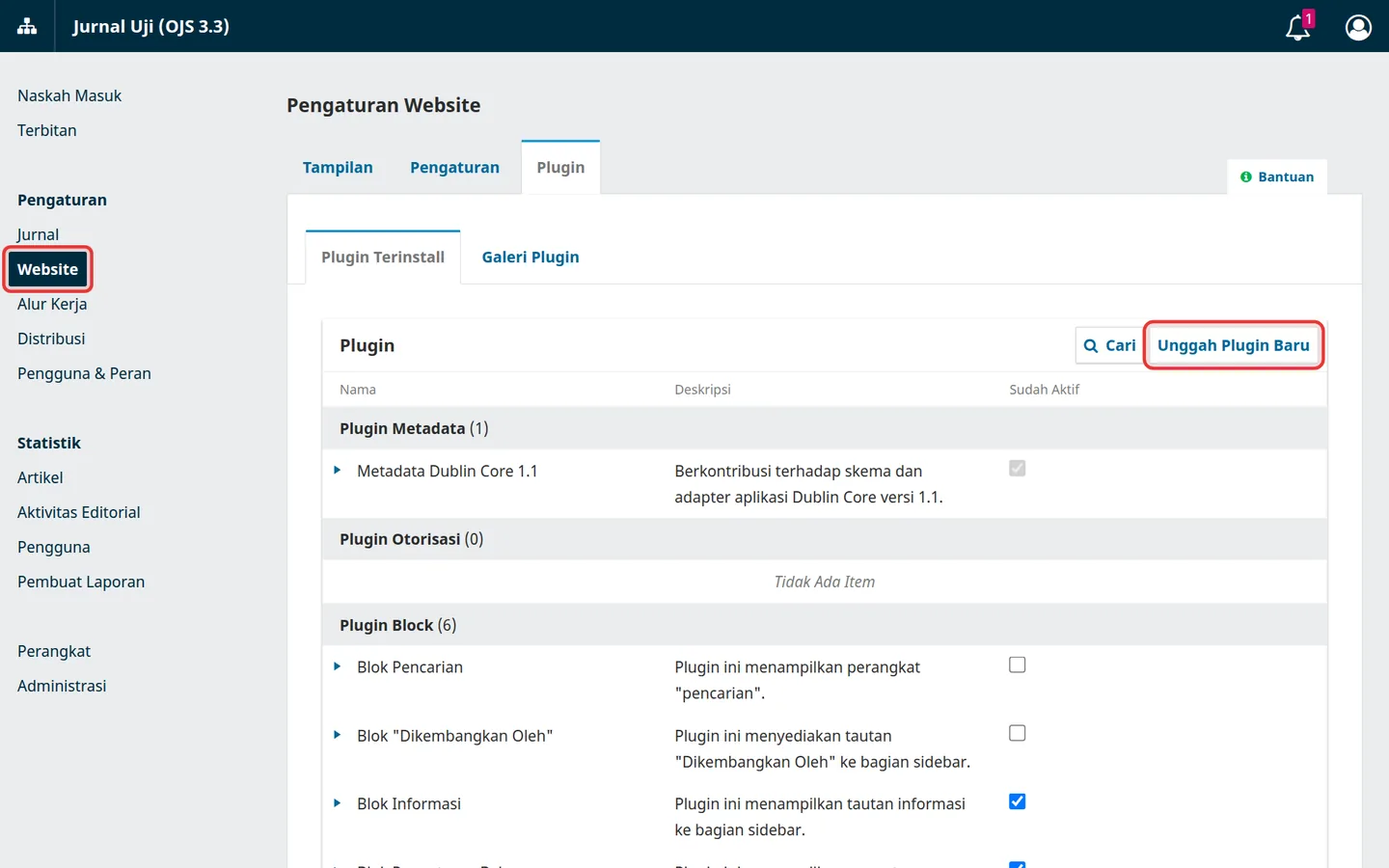
Log in to OJS as Site Admin, then open Settings › Website › Plugins tab. Click Upload A New Plugin.
-
Upload plugin file
Click Upload File, select the downloaded
.tar.gzfile, then click Save.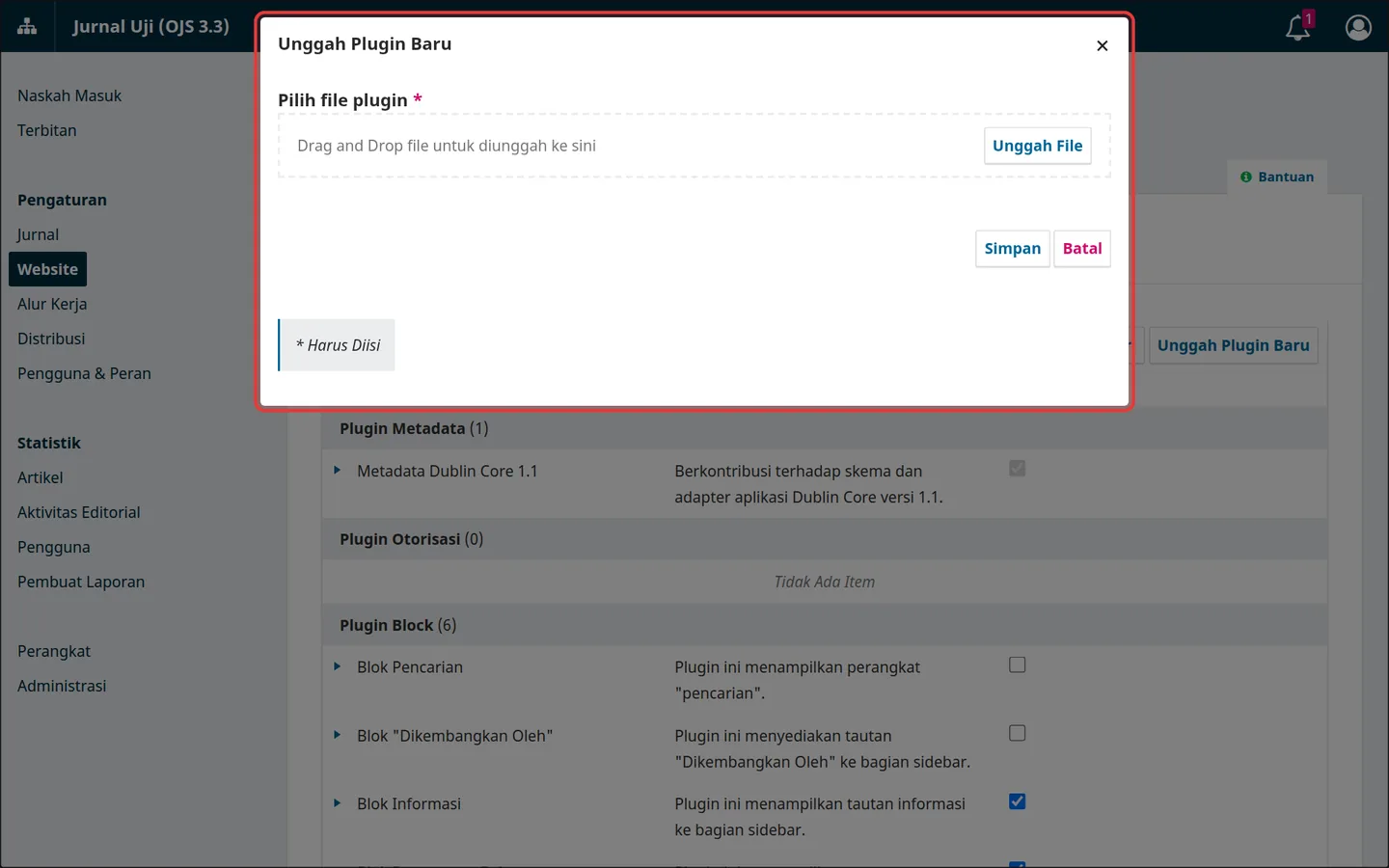
-
Enable plugin
In the Generic Plugins list, look for OJS3 Copilot API and check the Enable box.
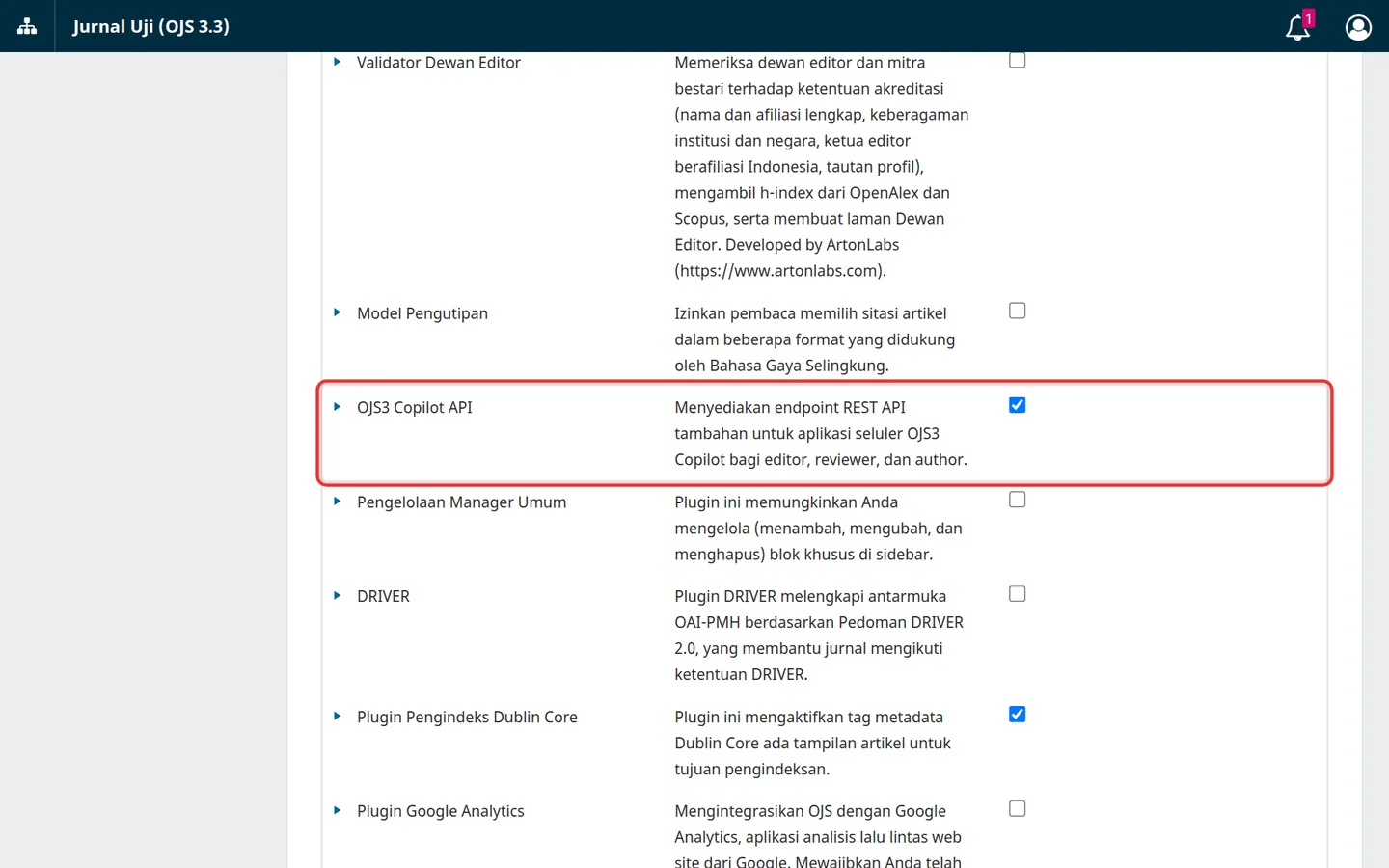
Updating to a new version? Repeat steps 2–3 with the new version file; OJS will ask to confirm the update.
-
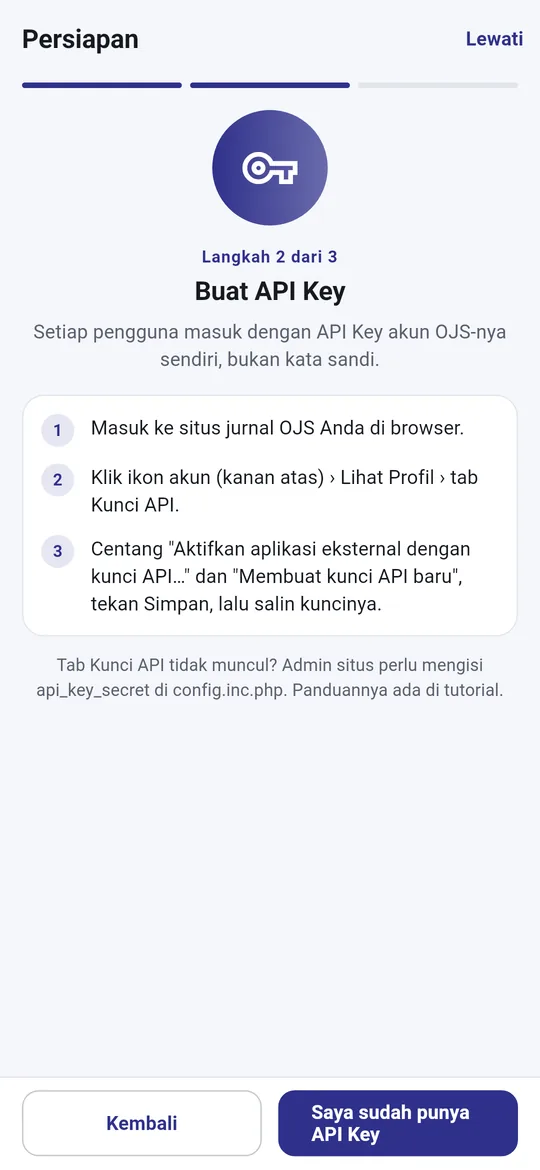
Create API Key (each user)
Each editor, reviewer, or author using the app creates their own key: click the account icon (top right) › View Profile › API Keys tab › check Enable external applications with API keys to access this account and Create new API key › Save, then copy the key.
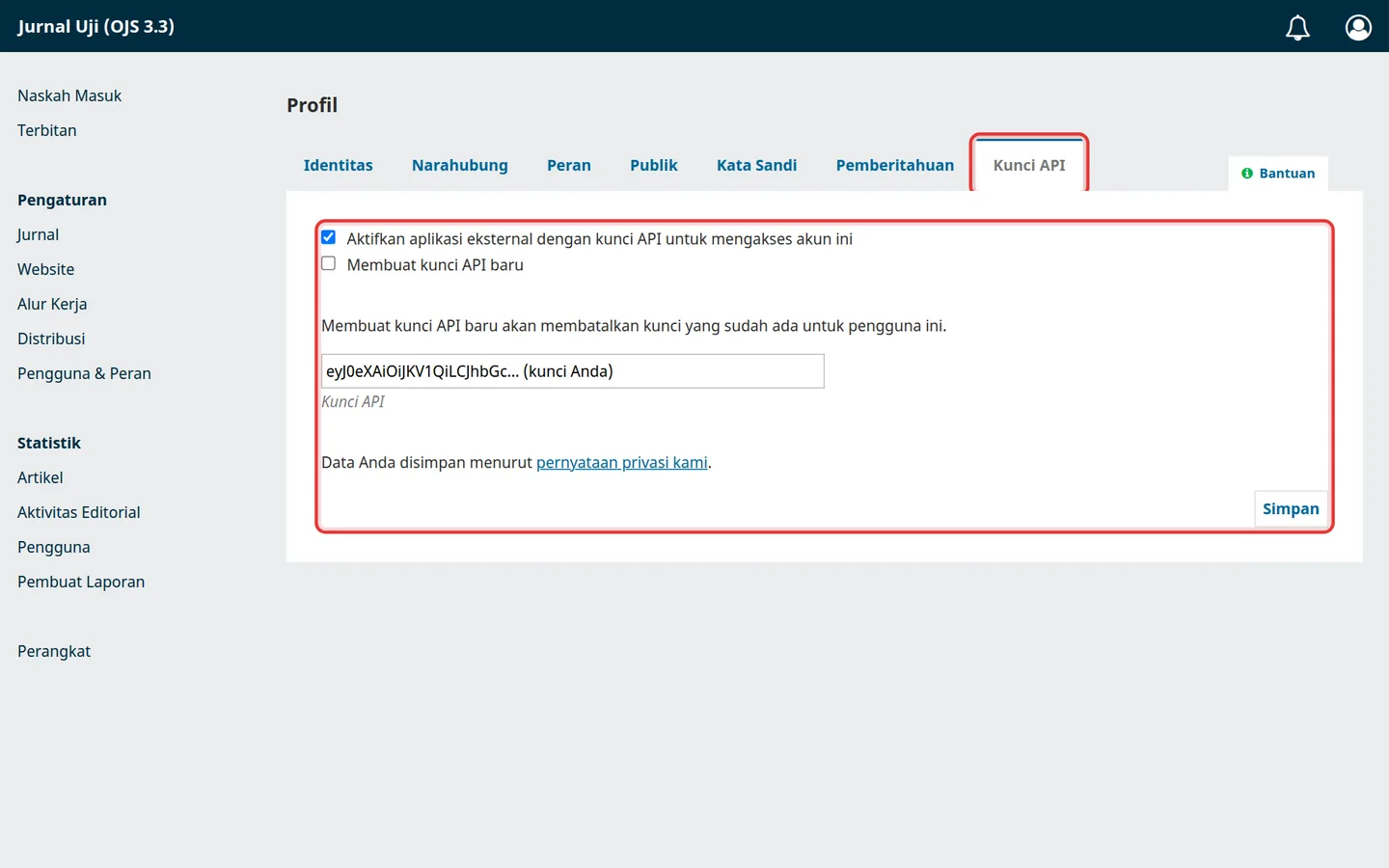
API Keys tab not showing? Site admins need to fill in
api_key_secretinconfig.inc.php(under[security]), for example with 32+ random characters:[security] api_key_secret = "isi-dengan-teks-acak-panjang-dan-rahasia" -
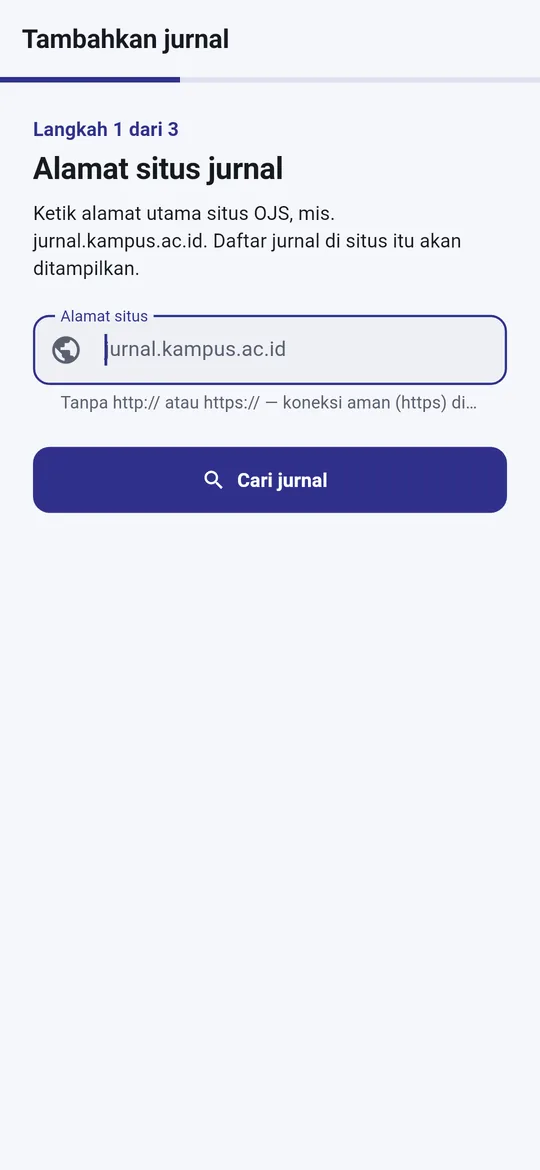
Connect in the app
Open OJS Copilot › Add journal › follow the Preparation steps › enter the site URL (e.g.
jurnal.kampus.ac.id), select a journal, then paste the API Key.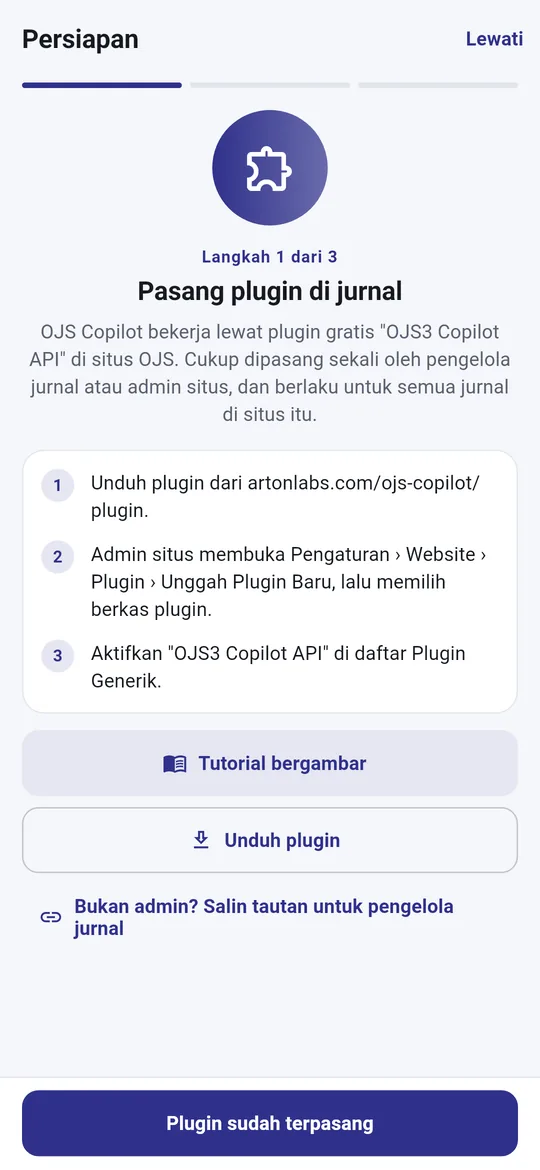
Common issues
- "OJS3 Copilot API plugin is not installed or not active" — make sure step 4 has been completed; for older OJS, activate the plugin in at least one journal.
- "API Key is invalid" — create a new key (step 5) and copy it completely without spaces.
- Server rejected saving (HTTP 403 when saving) — some hosting providers (LiteSpeed/Imunify) block PUT/DELETE; the app already uses POST, but ask hosting to allow
/index.php/*/api/if this still occurs. - Site must use HTTPS.
Need help? cs@artonlabs.com